Here’s are a few short tips - to toggle Dark Mode on macOS without opening System Preferences. Useful when designing your Dark Mode enabled web site using prefers-color-sheme Media Query, like I did.
Toggle Dark Mode Via an Automator Application
- Run
Automator.app. - If the new file dialog opens, select Type Application, else File > New… > Application.
- From the Actions list, select Library > Utilities and double click Change System Appearance:
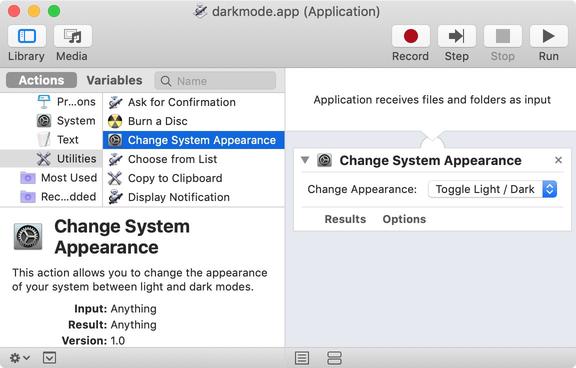
- File > Save… - I saved it as
darkmode.appon my Desktop. - When you first run
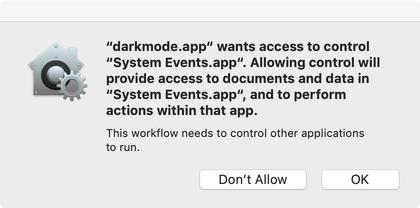
darkmode.app, you’ll be greeted with this message - hit Ok to grant access:
Toggle Dark Mode Via Touch Bar Quick Action
- Run
Automator.app. - If the new file dialog opens, select Type Quick Action, else File > New… > Quick Action.
- From the Actions list, select Library > Utilities and double click Change System Appearance.
- File > Save… - I saved it as
Dark Mode - Head over to your System Preferences > Keyboard and hit Customise Touch Bar…
- Drag Quick Actions on to your Touch Bar.
- Now select the Quick Actions icon on your Touch Bar.
- When you first run the Quick Action, you’ll be greeted with a similar message to the one above except for “ServicesUIAgent” - again hit Ok.
Toggle Dark Mode Via Terminal or Shell Script
- Open
Terminal.app. - Either, just run this from the terminal or save this snippet as a shell script:
osascript -e 'tell application "System Events" to tell appearance preferences to set dark mode to not dark mode'
- Or, edit your
.bash_profileand include an aliasdarkmode:
alias darkmode="osascript -e 'tell application \"System Events\" to tell appearance preferences to set dark mode to not dark mode'"
- Once again, accept the security prompt.
Closing
One last thing, if you want to undo the Allow permission:
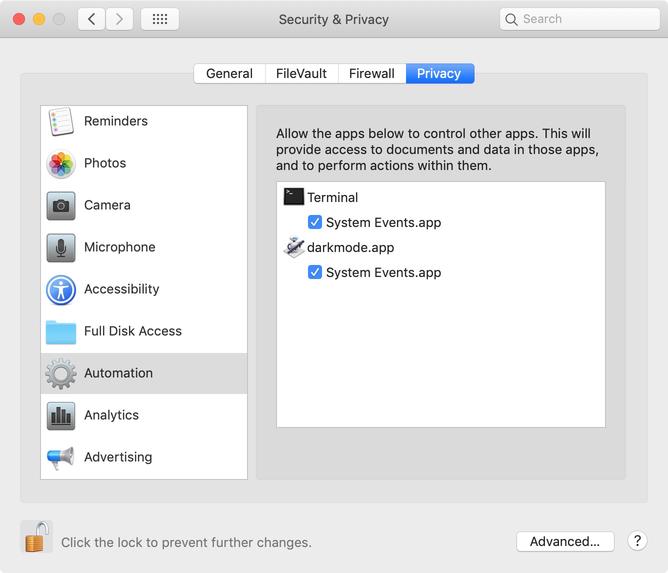
- Head over to System Preferences > Security & Privacy > Automation.
- Hit the lock icon and enter your password to make changes.
- Un-check to revoke permissions to System Events.app: