On my Mac, by default, the keyboard cannot be used to navigate and trigger dialog box buttons. To “fix” this shortcoming - enable Full Keyboard Access to use the tab key to navigate controls! But beware of downsides too…
I hate that I have to resort to using the mouse to click on dialog buttons like this (when launching Vivaldi, my browser of choice):
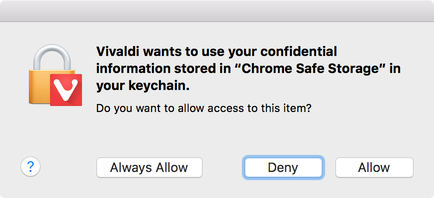
Changing the Full Keyboard Access setting allows one to press tab to highlight the next button and shift-tab to highlight the previous. Press space to activate the button (return, a.k.a. enter, is supposed to trigger the default button but in this case, there is no default button).
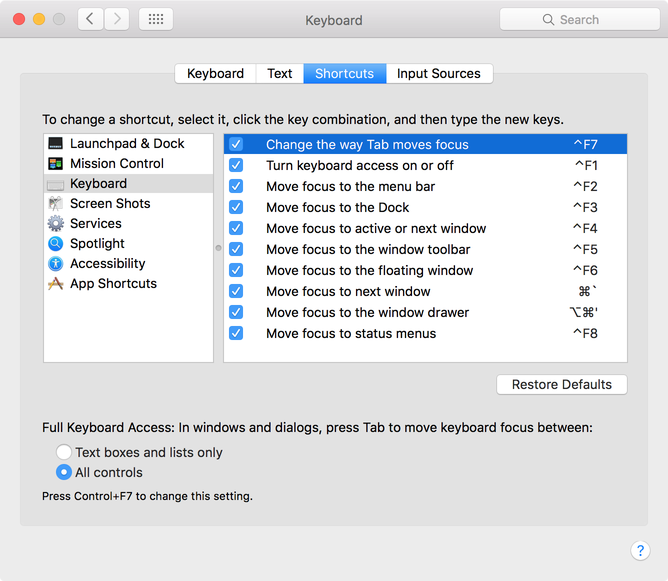
This feature is really very deeply hidden in System Preferences > Keyboard > Shortcuts. At the bottom under Full Keyboard Access, select All Controls. Also, note that control-F7 toggles the setting. If this keystroke combination does not work, then check Keyboard > Change the way Tab moves focus in the lists at the top:
There are downsides though:
- You now have to navigate through all controls (even tiny drop down arrows, check boxes, etc.)
- Arrow keys do not navigate between buttons.
- You will often get lost when the focused control is scrolled away, hidden or obscured by the selection.
- You may get stuck in lists (Shift-Control-Tab does not work for me).
- Plus, clicking a control sometimes does not set focus on it, so you can’t navigate from that point forward.
This is so silly, when compared to Windows! How is the keyboard an “Accessibility” “feature” and not standard behaviour?
With Windows, I disable all accessibility settings like Sticky Keys, whereas on iOS and Mac / OS X, I do the exact opposite (for iOS, check out this previous post, AssistiveTouch Customisation on iOS 9).
Anyway, the Apple support page Mac keyboard shortcuts for accessibility features lists the shortcuts enabled by this setting. Here is a summary: