The current version of CrossOver 25.1.1 utilizes with Apple’s Game Porting Toolkit 2.1. Here is how to update it to use Game Porting Toolkit 3.0 (GPTK), released (updated) on 5 December 2025, which emulates NVIDIA DLSS with MetalFX!
Update 11 Feb 2026: This post is no longer relevant, with the release of CrossOver 26.0 which bakes in support for D3DMetal 3.0.
This summary is based on Andrew Tsai’s great video tutorial, entitled “I tried GPTK 3.0 + DLSS on Mac.. and it ACTUALLY Worked!”.
First download GPTK and extract the files required by CrossOver:
- Download Game Porting Toolkit 3.0 directly from Apple - you will need a free developer account.
- Open the downloaded
Game_Porting_Toolkit_3.0.dmgfile - Within the archive, open the
Evaluation environment for Windows games 3.0.dmgand accept the license agreement - Copy the
libfolder from within theredistfolder to a temporary location e.g. to the desktop - there should be two subfoldersexternalandwine - Open the
wine\x86_64-unixfolder - Rename
nvngx-on-metalfx.sotonvngx.so - Open the
wine\x86_64-windowsfolder on copied version - And similarly, rename
nvngx-on-metalfx.dlltonvngx.dll - Copy two files
nvngx.dllandnvapi64.dllfrom this folder
Next, find the CrossOver Bottle to update with DLSS:
- Run CrossOver.app
- Select an existing Bottle
- Click Open C: Drive
- Navigate to
windows/system32 - Paste
nvngx.dllandnvapi64.dllfiles from thewine\x86_64-windowsfolder to this folder - Navigate “up” the folder hierarchy to the Bottle folder that contains
drive_c - Here, there should be a file called
cxbottle.conf - Edit it in the text editor of your choice - right at the end, add the last two lines:
[EnvironmentVariables]
;;"PROMPT" = "$p$g"
"CX_BOTTLE_CREATOR_APPID" = "com.codeweavers.c4.12345"
"CX_GRAPHICS_BACKEND" = ""
"WINEMSYNC" = "1"
"D3DM_ENABLE_METALFX" = "1"
"ROSETTA_ADVERTISE_AVX" = "1"
Repeat for all required Bottles.
Next, update GPTK within the CrossOver app:
- Quit CrossOver.app fully
- Open Finder.app to the
Applicationsfavorites item - Right click CrossOver.app and select Show Package Contents
- Navigate to the folder
Contents/SharedSupport/CrossOver - Rename the folder
apple_gptktoapple_gptk.backupor similar - Create a new folder, also called
apple_gptk - Copy the contents of the
libfolder in the temporary location above to this folder - that is to say copy both subfoldersexternalandwineto the new folder
Finally, turn on the Metal Performance HUD and the test via a game that supports DLSS:
- Open Terminal.app
- Turn on the HUD,
launchctl setenv MTL_HUD_ENABLED 1 - Run a game and make sure to turn on DLSS in the settings of the game
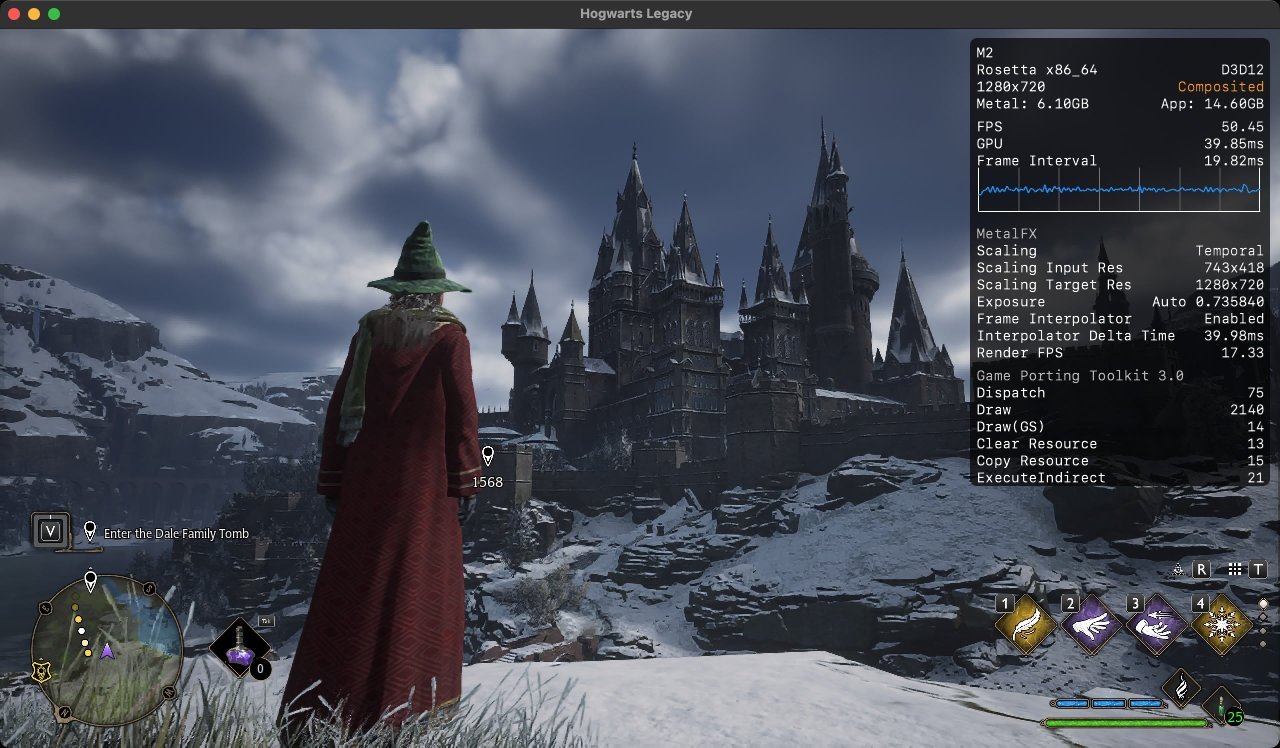
- Check the HUD, which should clearly state
MetalFXandGame Porting Toolkit 3.0(instead of only one seciton with Game Porting Toolkit 2.1` - Turn off the HUD again in terminal,
launchctl unsetenv MTL_HUD_ENABLED
For my testing, I successfully updated CrossOver to run Hogwarts Legacy which is free on the Epic Games Store for this week in December 2025. Performance is better and graphics look better with DLSS enabled on my M2 mac.

Updated 11 Feb 2026: with standard CrossOver install: